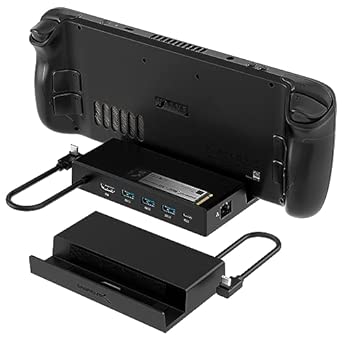

Master Dual-Monitor KVM Docking: Key Buying Tips for the AV Access iDock C10
When setting up a home office with two computers and dual monitors, a KVM docking station like the AV Access iDock C10 can streamline your workflow by letting you control both systems with a single keyboard, mouse, and display setup. Before you invest, it's crucial to understand how this device's specific features—such as EDID emulation, 4K@60Hz HDMI output, and 60W laptop charging—align with your hardware and daily tasks.
Key Considerations Before Buying
- Check your laptop's USB-C port capabilities: The iDock C10 relies on USB-C with DisplayPort Alt Mode and Power Delivery for video and charging. If your laptop lacks this, you won't get 4K@60Hz or the 60W charge, so verify your device's specs first.
- Consider your monitor setup: This dock supports dual HDMI monitors at 4K@60Hz, but if your monitors use DisplayPort or you need higher refresh rates (e.g., 144Hz), you'll need adapters or a different dock. Ensure your monitors have HDMI inputs and that your cables are HDMI 2.0 or higher.
- Think about peripheral connectivity: With 5xUSB-A ports, you can connect multiple accessories, but note that not all ports may support the same speeds. If you use high-bandwidth devices like external SSDs, check which ports are USB 3.0 and whether they can deliver enough power for bus-powered devices.
What Our Analysts Recommend
Look for a KVM dock that offers seamless switching between computers without lag or display dropouts—EDID emulation is a key feature that maintains monitor resolution and prevents screen flicker. Also, ensure the dock provides adequate power delivery (60W is good for many ultrabooks but may not suffice for larger laptops) and that the USB-C cable is detachable for easy replacement.
Docking Stations Market Context
Market Overview
The docking station market has expanded rapidly with the rise of hybrid work, offering solutions that combine KVM switching, multiple display outputs, and high-speed networking. Products like the iDock C10 target professionals who need to toggle between a personal laptop and a work desktop without cable juggling, making them essential for efficient multi-device setups.
Common Issues
Common complaints in this category include unreliable EDID emulation causing display resolution issues, USB ports that don't deliver advertised speeds, and KVM switching that is slow or requires manual intervention. Additionally, some docks fail to charge laptops at full speed, especially under heavy load, leading to battery drain during intensive tasks.
Quality Indicators
Quality KVM docks are built with robust chipsets (e.g., from Synaptics or Fresco Logic) that ensure stable video and data transfer, and they include features like firmware updates to fix bugs. Look for docks with solid build quality, clear LED indicators, and positive user feedback on switching reliability and sustained charging performance.
Review Authenticity Insights
Grade B Interpretation
The Grade B and 15% estimated fake review rate indicate that while most reviews are genuine, a notable minority may be incentivized or fabricated, which could skew the overall 3.88 rating upward. This means the true user satisfaction might be slightly lower, as reflected in the adjusted 3.60 rating, so you should weigh negative reviews carefully.
Trust Recommendation
Given the 15% fake review rate, it's wise to focus on detailed, balanced reviews that mention specific pros and cons, and to cross-check feedback on external forums like Reddit or tech review sites. Be cautious of overly positive reviews with generic language or those that lack verified purchase badges, as these are more likely to be inauthentic.
Tips for Reading Reviews
When reading reviews for this product, prioritize those that describe real-world scenarios, such as using the dock with a specific laptop model or monitor setup, and note any recurring issues like display flicker or charging problems. Also, look for reviews that mention firmware updates or customer support experiences, as these indicate long-term reliability.
Expert Perspective
The AV Access iDock C10 offers a compelling feature set for dual-monitor KVM switching, but the mixed reviews and 3.6 adjusted rating suggest it may not be flawless. The EDID emulation and 4K@60Hz support are strong selling points, yet the 15% fake review rate and common complaints about switching reliability warrant caution. It's a solid option for tech-savvy users who can troubleshoot, but not the most foolproof choice for non-technical buyers.
Purchase Considerations
Weigh the convenience of dual-monitor KVM against potential setup complexity and the risk of issues like display dropouts or charging inconsistencies. If your setup is standard (e.g., two HDMI monitors and a USB-C laptop), this dock could work well, but ensure your retailer offers a good return policy in case it doesn't meet expectations.
Comparing Alternatives
Before committing, compare the iDock C10 with other KVM docks like the Plugable UD-6950PDZ or TESmart dual-monitor KVM, which may offer better reliability or additional ports. Also, consider whether you need a dedicated KVM switch or if a simple docking station with software switching could suffice.